
Introduction
Dynamics 365 auditing feature logs changes made to records, allowing you to view the details of those changes at any time. Whenever a record is created, updated, or deleted, the system records this action as an audit log.
In a large environment with many tables that have auditing enabled, the audit table can quickly become quite large. While you can view the audit table storage space in Power Platform Admin Center, you cannot view the storage space per table. Dataverse does not directly expose per-table audit storage space in the Admin Center; only the total storage space for audit logs per environment is available.
To address this limitation, there is a solution: Dataverse GetAuditStorageDetails action.
Audit storage consumption in Admin Center
To view Audit log storage:
- Go to Power Platform Admin Center
- Select Licensing in the left pane, then Dataverse and select your environment
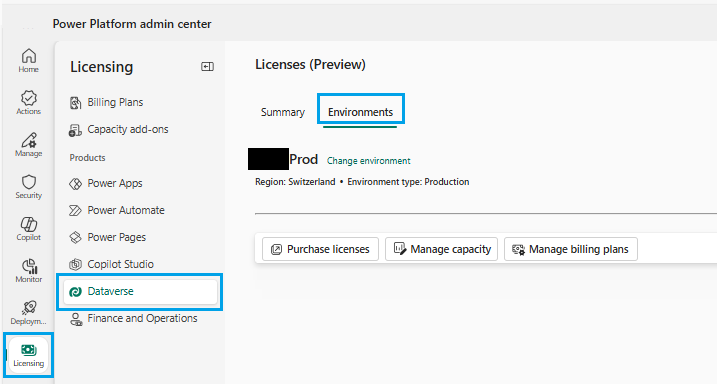
- Click on Log in section Usage per storage type.
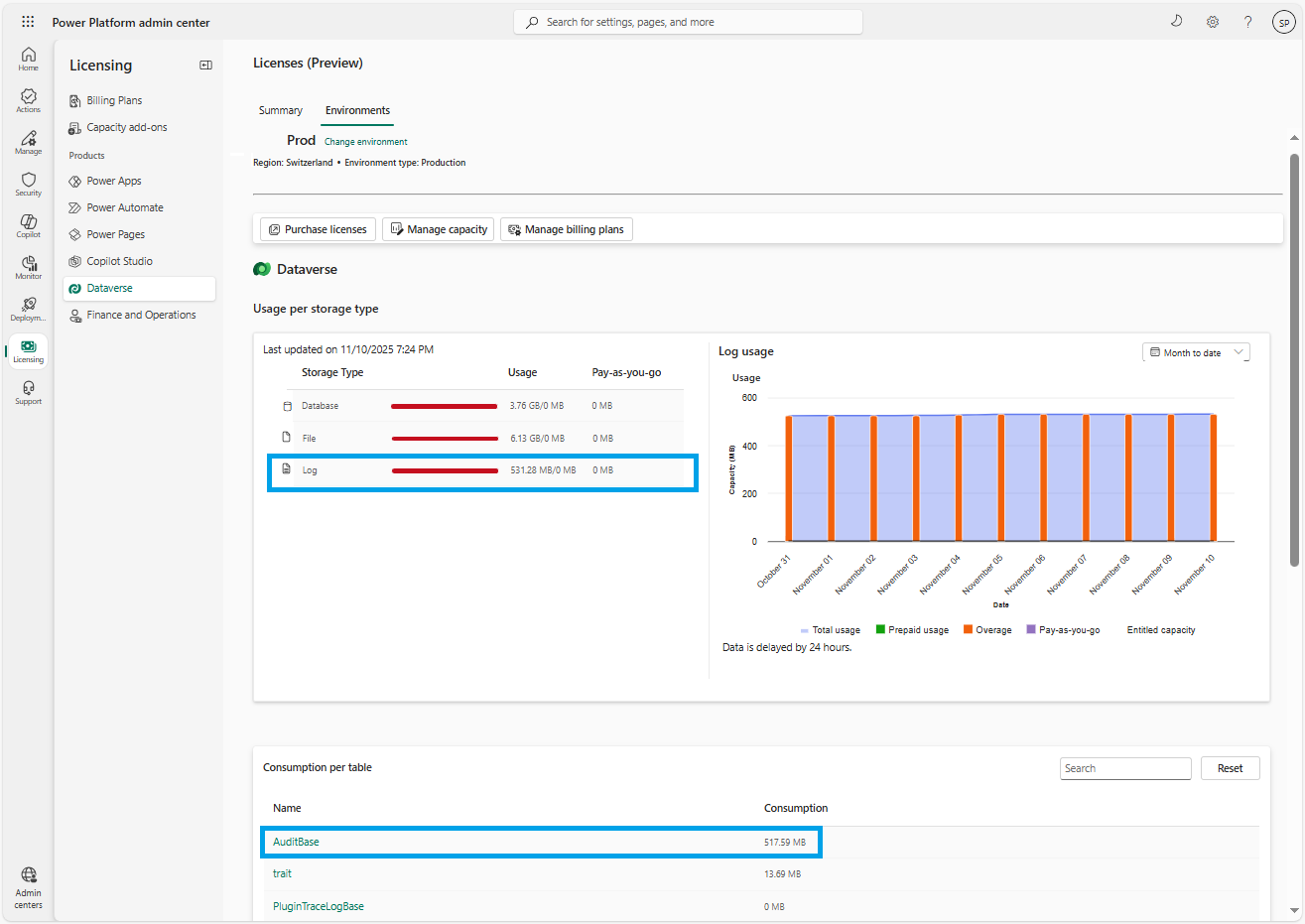
You can view the global audit log storage consumption (517.59 MB in my example) but it's not possible to obtain the storage per table. Note that for Database storage it is possible to view the storage per table.
GetAuditStorageDetails Action
To view audit log storage per table the solution is Dataverse GetAuditStorageDetails action.
It provides detailed information about the amount of audit storage space used, broken down by table. This feature allows you to identify where storage space is being consumed and manage it effectively.
To call GetAuditStorageDetails action you must be System Administrator or have Audit-related privileges in Dataverse.
You can use the Web API (POST) to call the action:
POST [Organization Uri]/api/data/v9.2/GetAuditStorageDetails
Accept: application/json
Content-Type: application/json; charset=utf-8
OData-MaxVersion: 4.0
OData-Version: 4.0
Processing time depends on the size of your environment and the total amount of data in audit logs.
When GetAuditStorageDetails action is triggered for the first time, the process may take some time while the system retrieves audit data for each table. During this time, the response Status field displays 'Pending'. While the operation is running, you will receive a response similar to this:
HTTP/1.1 200 OK
Content-Type: application/json; odata.metadata=minimal
OData-Version: 4.0

{
    "@odata.context":  [Organization Uri]/api/data/v9.1/$metadata#Microsoft.Dynamics.CRM.GetAuditStorageDetailsResponse,
    "Result": {
        "Status": "Pending",
        "AuditStorageDetails": null
 }
}
When the process is completed, status is set to 'Completed'.
Below the result obtained in my environment. Results are stored in Result.AuditStorageDetails.
First, we have an array named Keys containing the names of all the tables for which the auditing feature is enabled (30 tables in my environment).
Next, we have an array named Values containing pairs SizeInBytes/ObjectTypeCode.
Note that we get ObjectTypeCode value (whole number) for each table and not the table display name.
To get table display name from its ObjectTypeCode you need to query the table EntityDefinition.
{
  "@odata.context": "https://organization_URI.crm.dynamics.com/api/data/v9.2/$metadata#Microsoft.Dynamics.CRM.GetAuditStorageDetailsResponse",
  "Result": {
    "Status": "Completed",
    "AuditStorageDetails": {
      "Count": 30,
      "Keys": [
        "account",
        "contact",
        "lead",
        "systemuser",
        "msdyn_aimodel",
        "organization",
        "product",
        "role",
        "salesliterature",
        "list",
        "bulkoperation",
        "report",
        "goal",
        "goalrollupquery",
        "metric",
        "appsetting",
        "organizationsetting",
        "flowmachinegroup",
        "flowmachineimage",
        "aipluginoperation",
        "msdyn_evaluationcriteriaversion",
        "msdyn_evaluationinputconfig",
        "msdyn_opportunityresearchindicator",
        "msdyn_opportunityresearchuserinteractions",
        "msdyn_fieldservicesetting",
        "msdynmkt_contactpointconsent4",
        "msdynmkt_compliancesettings4",
        "msdynmkt_contactpointsettings",
        "msdynmkt_purpose",
        "msdynmkt_topic"
      ],
      "Values": [
        {
          "SizeInBytes": 1271,
          "ObjectTypeCode": 1
        },
        {
          "SizeInBytes": 83325,
          "ObjectTypeCode": 2
        },
        {
          "SizeInBytes": 1273,
          "ObjectTypeCode": 4
        },
        {
          "SizeInBytes": 8502538,
          "ObjectTypeCode": 8
        },
        {
          "SizeInBytes": 14983,
          "ObjectTypeCode": 401
        },
        {
          "SizeInBytes": 13528,
          "ObjectTypeCode": 1019
        },
        {
          "SizeInBytes": 1278,
          "ObjectTypeCode": 1024
        },
        {
          "SizeInBytes": 17096,
          "ObjectTypeCode": 1036
        },
        {
          "SizeInBytes": 1278,
          "ObjectTypeCode": 1038
        },
        {
          "SizeInBytes": 1278,
          "ObjectTypeCode": 4300
        },
        {
          "SizeInBytes": 1276,
          "ObjectTypeCode": 4406
        },
        {
          "SizeInBytes": 1276,
          "ObjectTypeCode": 9100
        },
        {
          "SizeInBytes": 1278,
          "ObjectTypeCode": 9600
        },
        {
          "SizeInBytes": 1278,
          "ObjectTypeCode": 9602
        },
        {
          "SizeInBytes": 1276,
          "ObjectTypeCode": 9603
        },
        {
          "SizeInBytes": 18431,
          "ObjectTypeCode": 10090
        },
        {
          "SizeInBytes": 17753,
          "ObjectTypeCode": 10092
        },
        {
          "SizeInBytes": 5487,
          "ObjectTypeCode": 10110
        },
        {
          "SizeInBytes": 5480,
          "ObjectTypeCode": 10111
        },
        {
          "SizeInBytes": 5399,
          "ObjectTypeCode": 10170
        },
        {
          "SizeInBytes": 2080,
          "ObjectTypeCode": 11115
        },
        {
          "SizeInBytes": 1285,
          "ObjectTypeCode": 11118
        },
        {
          "SizeInBytes": 3989,
          "ObjectTypeCode": 11155
        },
        {
          "SizeInBytes": 3989,
          "ObjectTypeCode": 11157
        },
        {
          "SizeInBytes": 49075,
          "ObjectTypeCode": 11363
        },
        {
          "SizeInBytes": 2590,
          "ObjectTypeCode": 11707
        },
        {
          "SizeInBytes": 7412,
          "ObjectTypeCode": 11765
        },
        {
          "SizeInBytes": 12459,
          "ObjectTypeCode": 11774
        },
        {
          "SizeInBytes": 11055,
          "ObjectTypeCode": 11779
        },
        {
          "SizeInBytes": 1303,
          "ObjectTypeCode": 11780
        }
      ]
    }
  }
}
Let's now write a C# console application to retrieve the top 10 tables that consume the most space in audit logs.
A few explanations about the C# code :
- I connect to Dynamics with an App registration. For this I set a connection string with AuthType=ClientSecret
- I create the request to get audit storage details with the following line: var request = new OrganizationRequest("GetAuditStorageDetails");
- I get results from property AuditStorageDetails and store them in a dictionary
- I build a list containing the data to be displayed and use Take() function to keep the first 10 elements
using System;
using System.Collections;
using System.Collections.Generic;
using System.Linq;
using Microsoft.Xrm.Sdk;
using Microsoft.Xrm.Tooling.Connector;

namespace AuditStorageDetails
{
    class Program
    {
        static void Main(string[] args)
        {

            var userAppId = "<appid>";
            var secretKey = "<secret>";
            var crmUrl = "https://organization_URI.crm.dynamics.com";
            string connectionString = $"AuthType=ClientSecret;url={crmUrl};ClientId={userAppId};ClientSecret={secretKey}";

            using (var serviceClient = new CrmServiceClient(connectionString))
            {
                var request = new OrganizationRequest("GetAuditStorageDetails");
                var response = serviceClient.Execute(request);
                var result = response.Results["Result"];

                if (result == null)
                {
                    Console.WriteLine("No result returned from GetAuditStorageDetails.");
                    return;
                }

                // Get AuditStorageDetails from the Result object
                var auditStorageDetailsProp = result.GetType().GetProperty("AuditStorageDetails");
                if (auditStorageDetailsProp == null)
                {
                    Console.WriteLine("AuditStorageDetails property not found in result.");
                    return;
                }

                // Get the value (dictionary)
                var auditStorageDetailsValue = auditStorageDetailsProp.GetValue(result);
                IDictionary auditStorageDict = (IDictionary)auditStorageDetailsValue;

                Console.WriteLine($"AuditStorageDetails contains {auditStorageDict.Count} entries\n");

                // Extract entries into a sortable list
                var entries = new List<(string Key, long SizeInBytes, object Detail)>();

                foreach (DictionaryEntry entry in auditStorageDict)
                {
                    var auditDetail = entry.Value;
                    var sizeProp = auditDetail.GetType().GetProperty("SizeInBytes");
                    var sizeValue = sizeProp.GetValue(auditDetail);
                    long sizeInBytes = sizeValue != null ? Convert.ToInt64(sizeValue) : 0;
                    entries.Add((entry.Key.ToString(), sizeInBytes, auditDetail));
                }

                // Sort by size descending
                var sorted = entries.OrderByDescending(e => e.SizeInBytes).ToList();

                // Display the top 10
                Console.WriteLine("Top 10 by audit storage size (in bytes):\n");

                foreach (var entry in sorted.Take(10))
                {
                    Console.WriteLine($"{entry.Key,-40} {entry.SizeInBytes,15:N0} bytes");
                }

                Console.WriteLine("\nDone.");
            }
        }
    }
}
Here is the result I get:
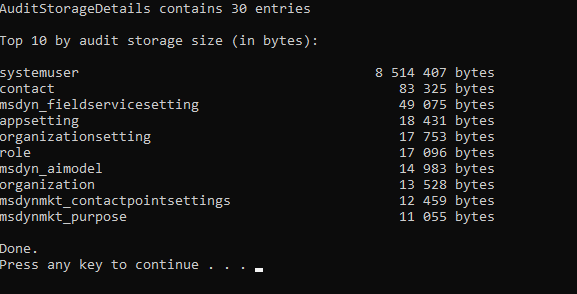
You can easily adapt the source code if you want to retrieve fewer or more results (for instance top 50).
Conclusion
The GetAuditStorageDetails action retrieves information about Audit storage usage, broken down by table. This allows you to identify where storage is being consumed and manage it efficiently.
Note that GetAuditStorageDetails action only provides information regarding storage usage but it doesn’t perform any cleanup. To delete audit logs you must use DeleteAuditData action or define audit retention policy in Power Platform Admin Center.
For a rough estimate of which tables are consuming the most audit storage you can also use the Audit table to get the count of audit records per table.
To do this, you can use the FetchXML query below: it returns the top 10 tables containing the most records in Audit table.
<fetch aggregate="true" top="10">
    <entity name="audit">
        <attribute name="auditid" aggregate="count" alias="count"/>
        <attribute name="objecttypecode" groupby="true" alias="table"/>
        <order alias="count" descending="true"/>
    </entity>
</fetch>
But since the results are based on a number of records and not a size in bytes, this is only a rough estimate.